My files: keep your own cells for every session
Most layouts reuse a few small pieces: your facility's alignment marks, a test structure, a pad ring you have drawn a dozen times. My files keeps those in the component dock, so each one is a click away in every tab and every session.
This guide is self-contained. Steps 1–4 draw a small cross mark and add it to My files. Steps 5–8 place it in a fresh document, with clicks and with a drag. Steps 9 and 10 add a file from disk and remove one.
- Time: ~10 min
- You'll need: just the editor, on a blank document. For step 9, any DXF, DWG, GDS or other layout file of your own.
Draw the mark in its own cell. Open the Cells tab in the panel on the right, click +, type
MARKand press Enter. Click the arrow at the end of the new row to enter the cell; the breadcrumb at the top left of the canvas readsTOP (top) › MARK. Draw two boxes with Box (B) and type exact numbers into Properties for each: W100, H10, X-50, Y-5for the bar, then W10, H100, X-5, Y-50for the post. That is a 100 µm cross centred on the cell's origin, and the origin matters: it is the point that will follow your cursor when you place the mark.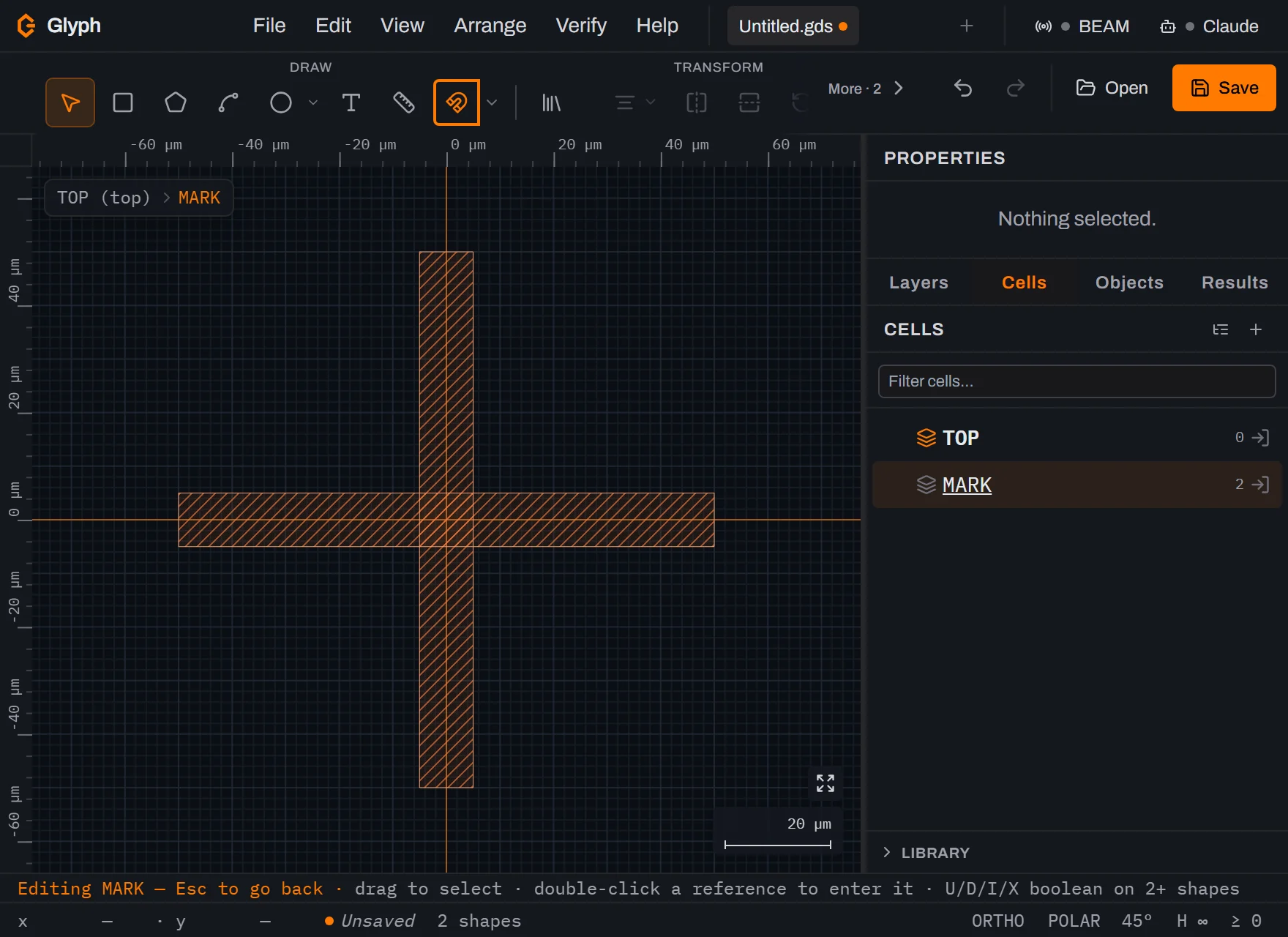 View full image
Right-click the cell's row. In the Cells panel, right-click the MARK row and choose Add to My files. (The command palette does the same for the cell you are editing: press
Ctrl+Kand typemy files.)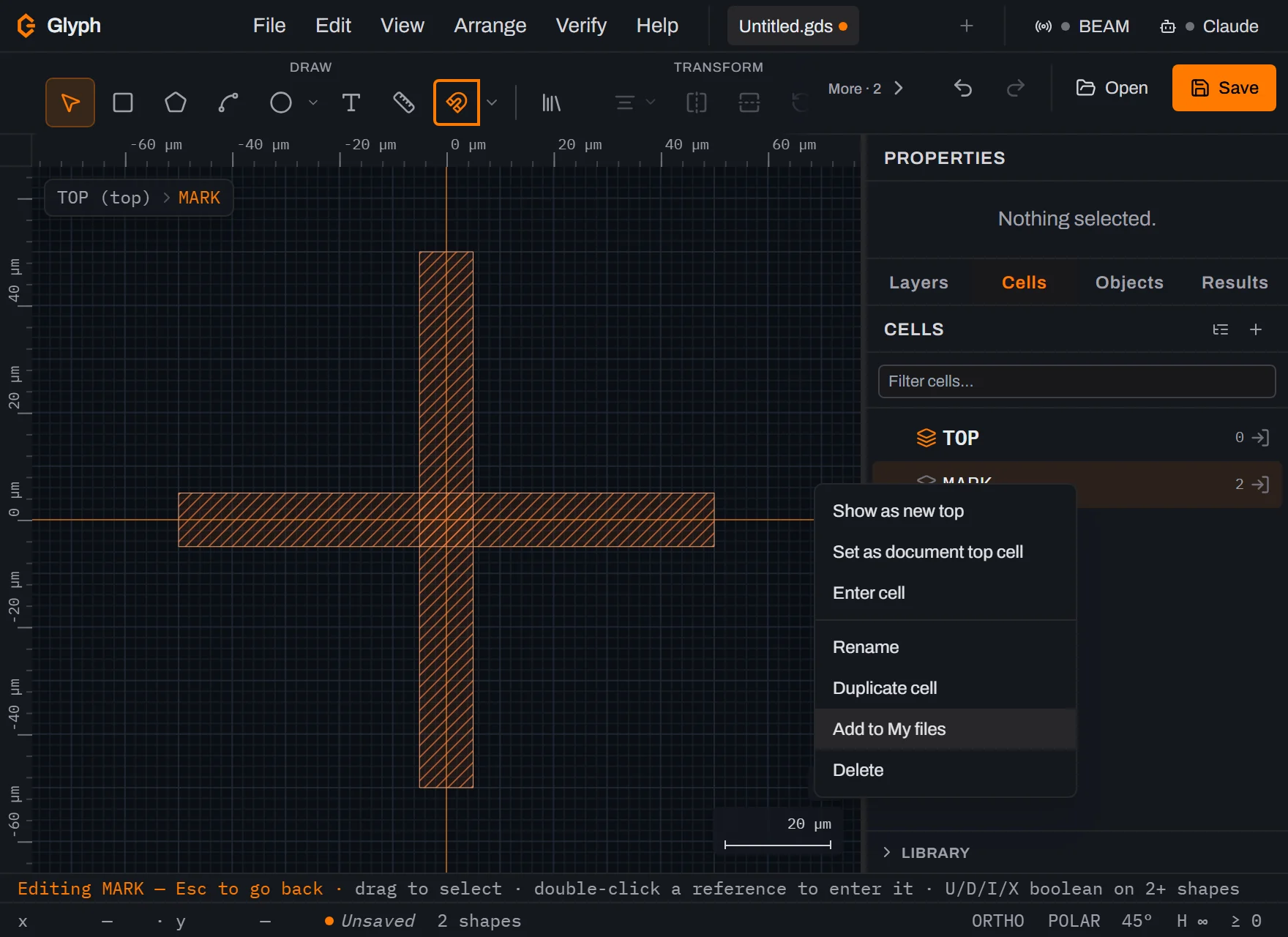 View full image
Read where it went. Glyph writes MARK, and every cell it places, into one GDS file named after the document and the cell, and adds that file to My files. The message names it: on an unsaved document,
Untitled-MARK.gds. Your document is not changed and no undo step is made.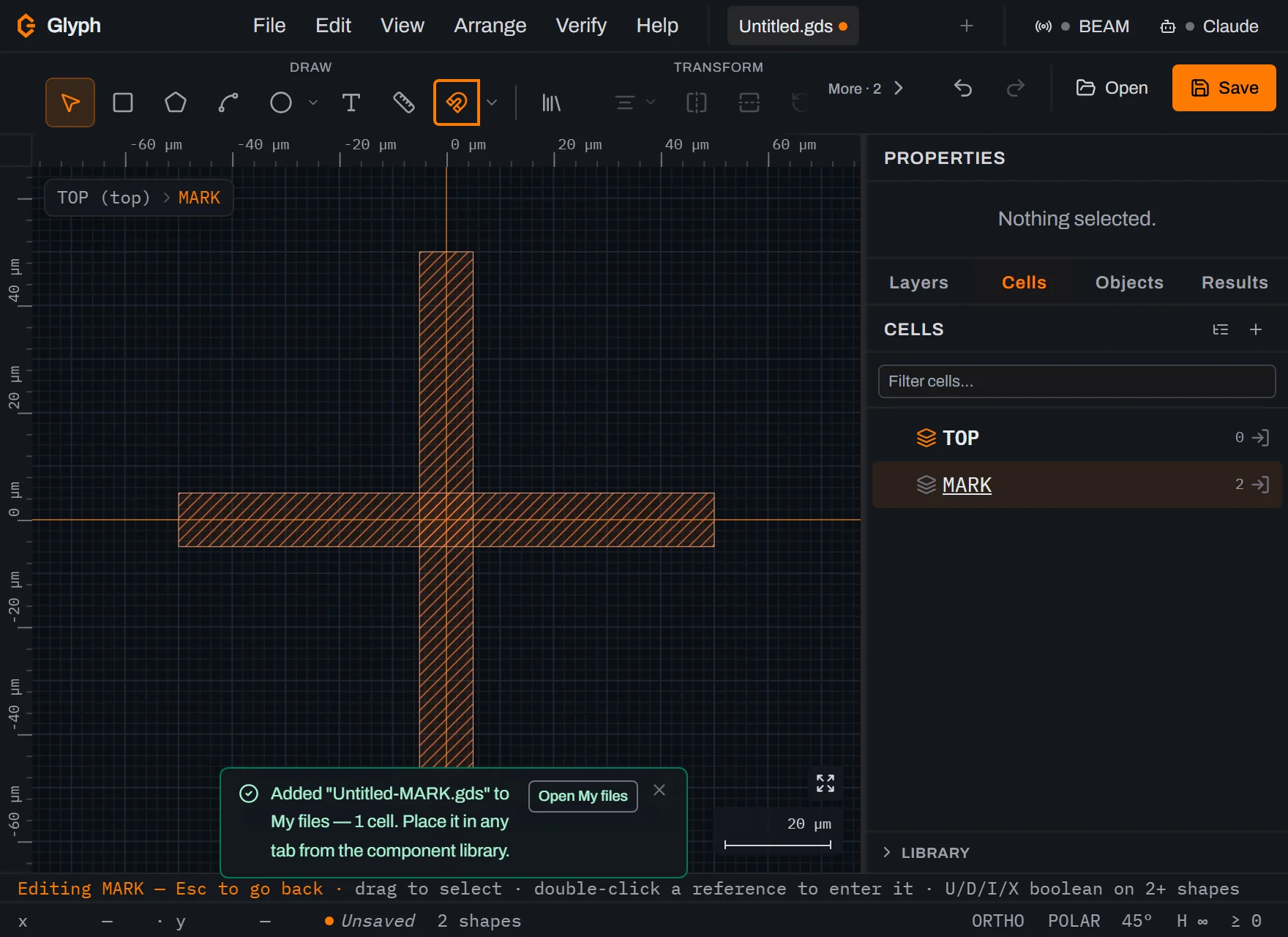 View full image
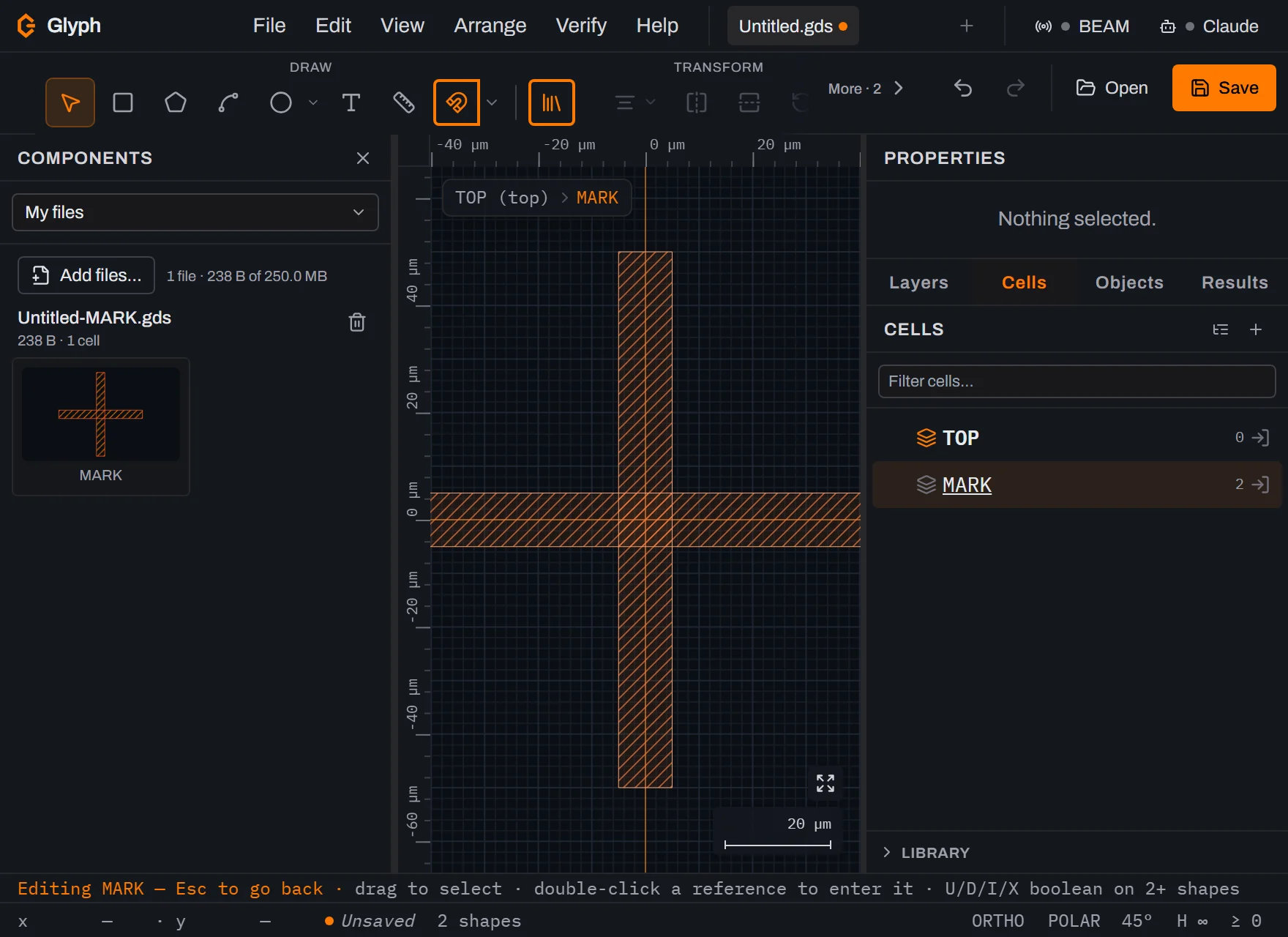
Open My files. Click Open My files in the message. The component dock opens on the left, on My files: the file's name, its size and cell count, and a card for MARK with a thumbnail of its geometry. Later you can reach the same place from ; My files is the first entry in the dock's dropdown.
 View full image
Arm the card in a new tab. Click + in the tab strip for a blank document, zoom out a little with the mouse wheel, then click the MARK card. The card is outlined in the accent colour while it is armed, a banner reads
Placing MARK from Untitled-MARK.gds, and a ghost of the cross follows the cursor with the cell's origin under the pointer.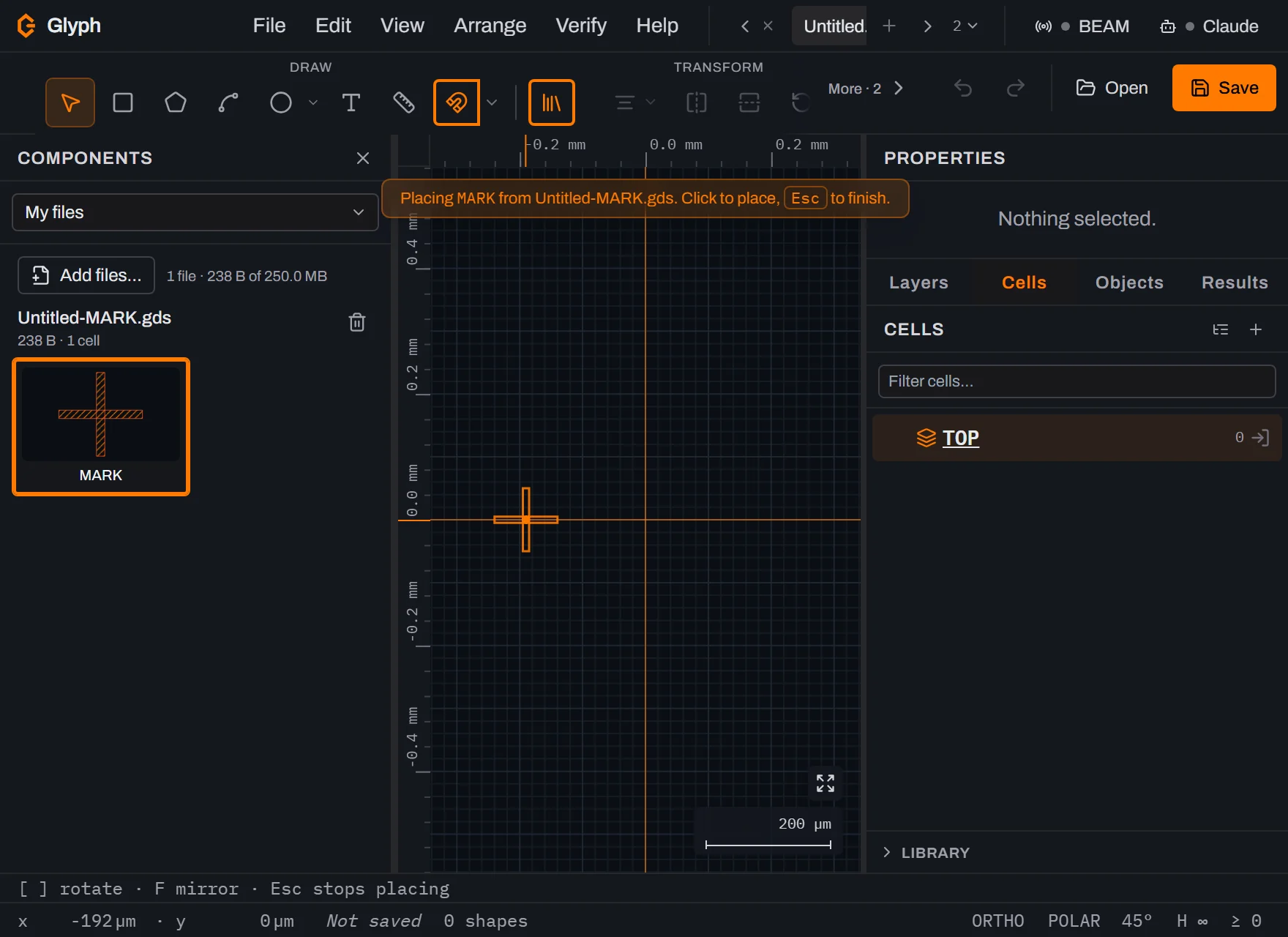 View full image
Click once for each copy, then press
Esc. The card stays armed after each drop, so three clicks place three copies;Escends the placement. The first drop copies MARK into this document together with the instance, in one undo step that Undo names Place MARK; the later drops reuse that copy, so the Cells panel lists MARK once, placed ×3.[and],RandFrotate and mirror the ghost before a drop.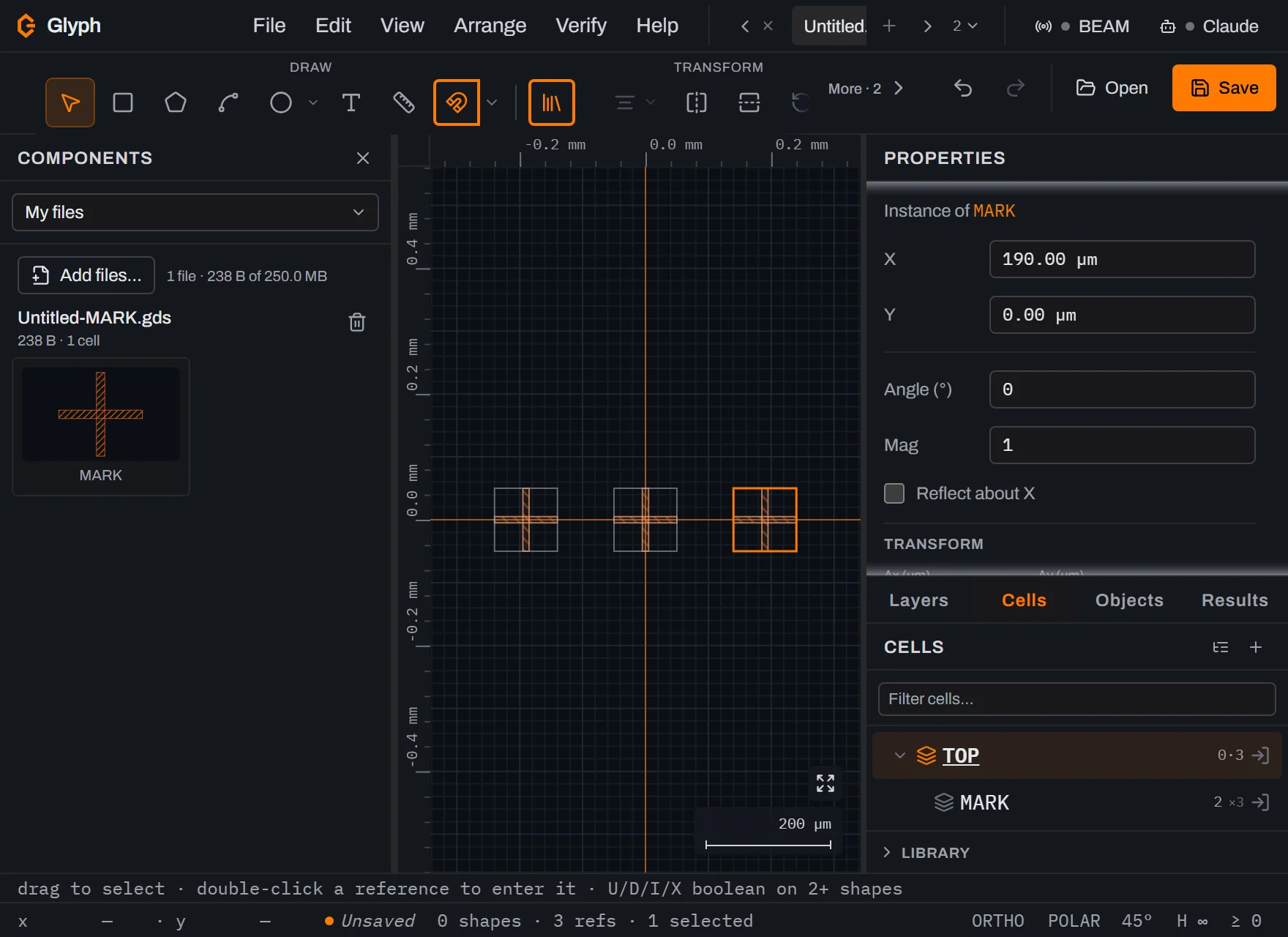 View full image
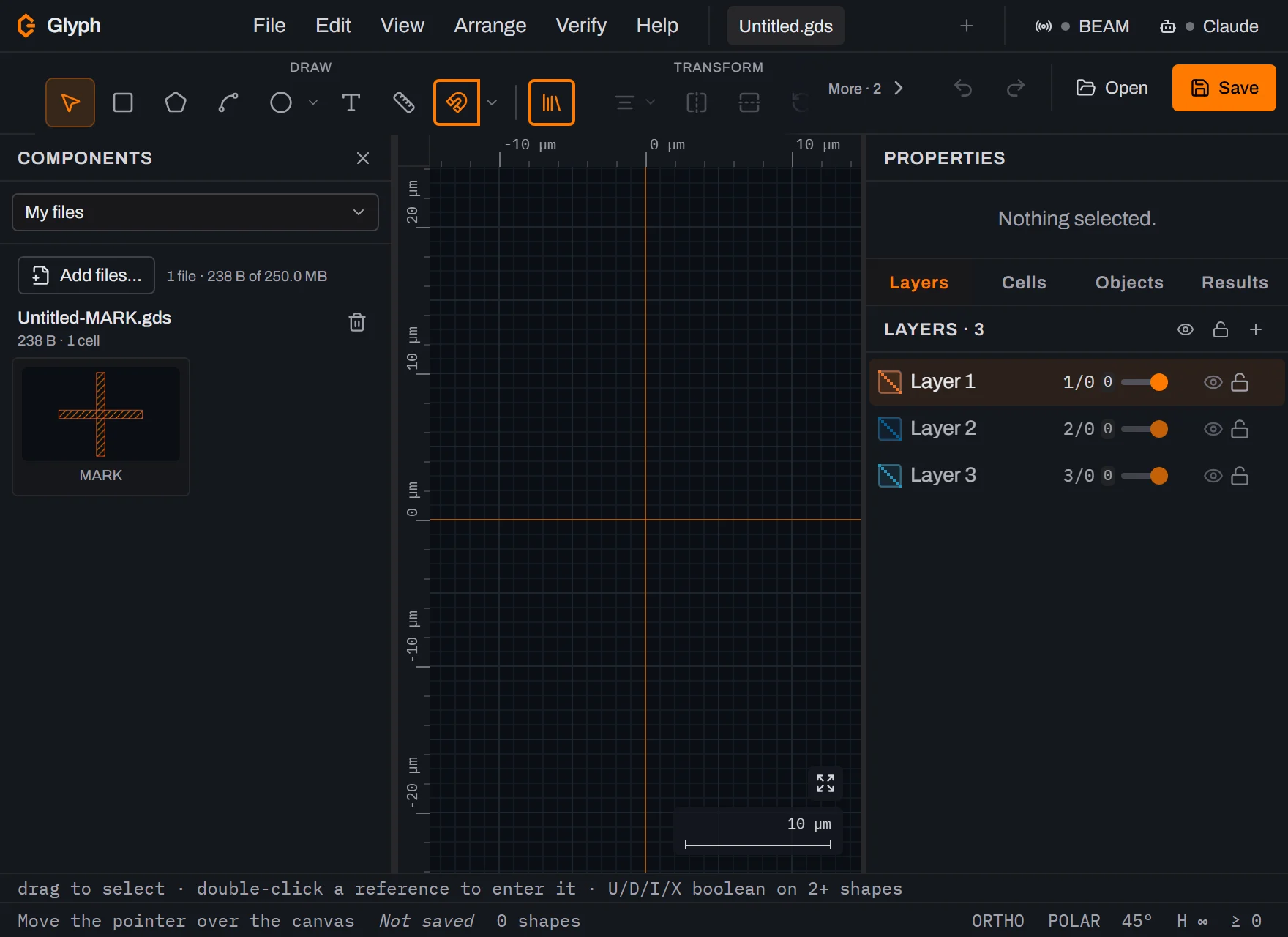
Reload the page. My files is still there, and the dock reopens on it, because the file is kept in this browser until you remove it, not in the document or the tab.
 View full image
Drag a card for a single copy. With a mouse or pen, press on the MARK card, drag it onto the canvas and release. That places one copy and ends the placement. Release it anywhere else and nothing is placed, but the card stays armed for your next canvas click. On a touch screen, tap the card, then tap the canvas.
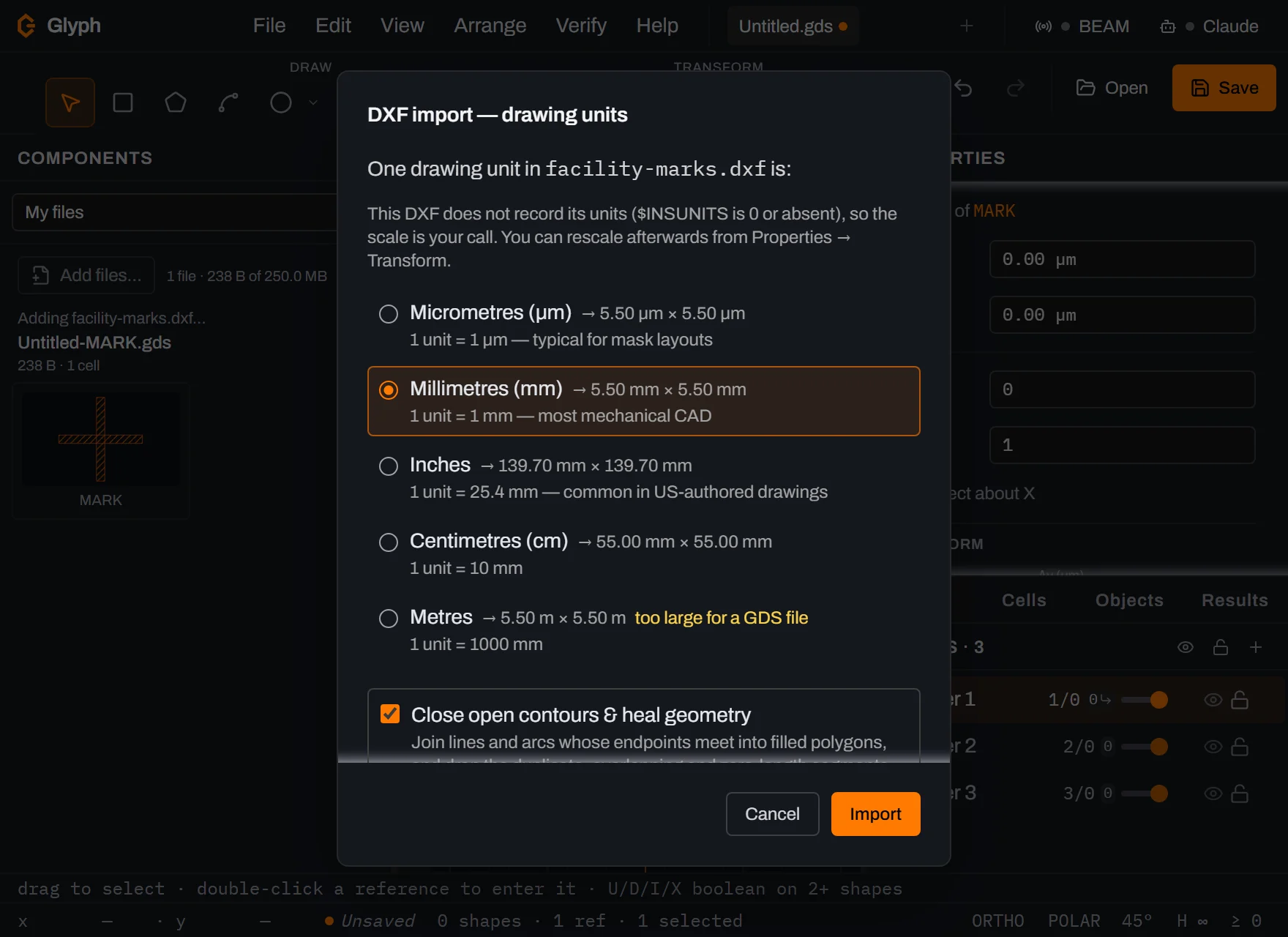
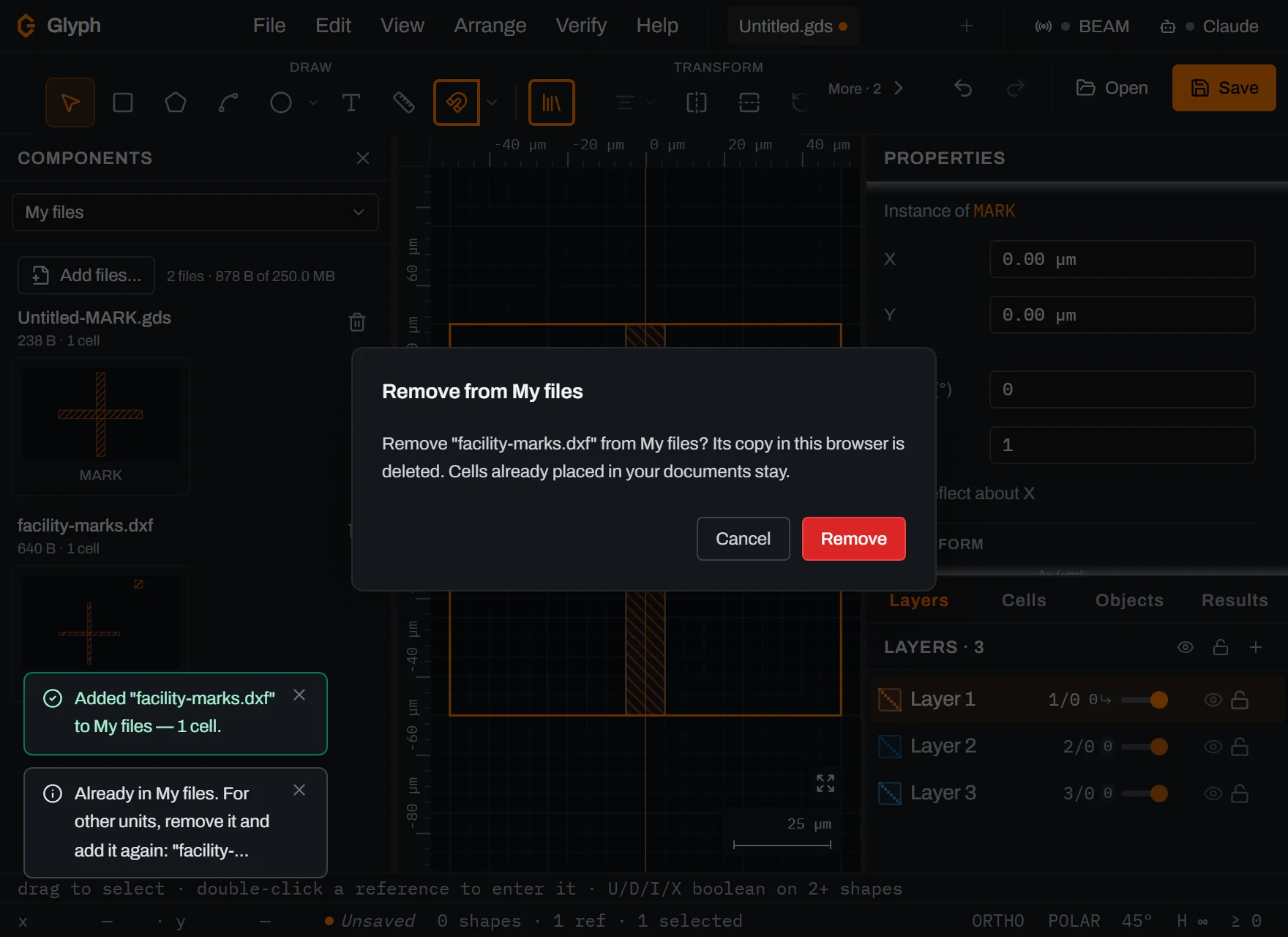
Add a file from disk. Click Add files… and pick one or more of your own files, or drop them onto the My files list; a drop there adds the file and never opens it as a document. A DWG, or a DXF that declares no units, asks for its drawing unit when you add it, with the drawing's size beside each choice. The answer is stored with the file, so it reads the same way every time. Add a file that is already there and the message says so and keeps the first copy.
 View full image
Remove a file you no longer need. Click the bin icon beside the file's name. Glyph asks first, then deletes only that file; cells you already placed stay in your documents.
 View full image
What you built
A small personal library that outlives the tab: one mark you drew and one file you added, each a card you can place in any document. A placed copy is an ordinary cell of that document, so it saves, exports and sends to BEAM like any other.
Next steps
My files sits beside the built-in parametric components in the same dock; Hierarchy and arrays shows how to turn one placed mark into a row or a grid. For a file you need only for this session, the Cells panel's read-only Library is the lighter choice. Every rule My files follows, from file limits to how two files with the same name are kept apart, is in the docs chapter Instances: SREF and AREF, under My files.
Frequently asked questions
Is a file in My files uploaded anywhere?
No. It is kept in this browser's own storage on this computer. It is never sent anywhere, it is not part of any document, autosave or tab, and the Claude bridge cannot see it.
Which files can I add?
Any format Glyph opens except images, so GDS, OASIS, CIF, DXF, DWG or SVG, plain or gzipped. A file over 50 MB, a damaged file, or one that would take My files past 100 files or 250 MB in total is refused with a message naming it, and nothing is stored.
Does removing a file change my documents?
No. Removing a file deletes only its copy in this browser. Cells you already placed are ordinary cells of your document and stay where they are.
How do I change the units of a file I already added?
Remove it with the bin icon beside its name and add it again. Adding the same file a second time keeps the first copy, read with the units it was first added with, and the message says so.
Do my files follow me to another browser or computer?
No. Each browser keeps its own My files, and clearing the browser's site data deletes them. Keep the original files somewhere safe.