Recover unsaved work and fix common Glyph issues
Glyph autosaves every open tab to your browser's private storage a few seconds after each edit, keeps up to ten restore points, and offers a Recover prompt after a crash or closed tab. This guide shows how to roll back to a snapshot, then walks through fixes for the most common day-to-day issues.
- Time: ~5 min
- You'll need: Nothing extra — this guide assumes you're already using Glyph in a browser.
 View full image
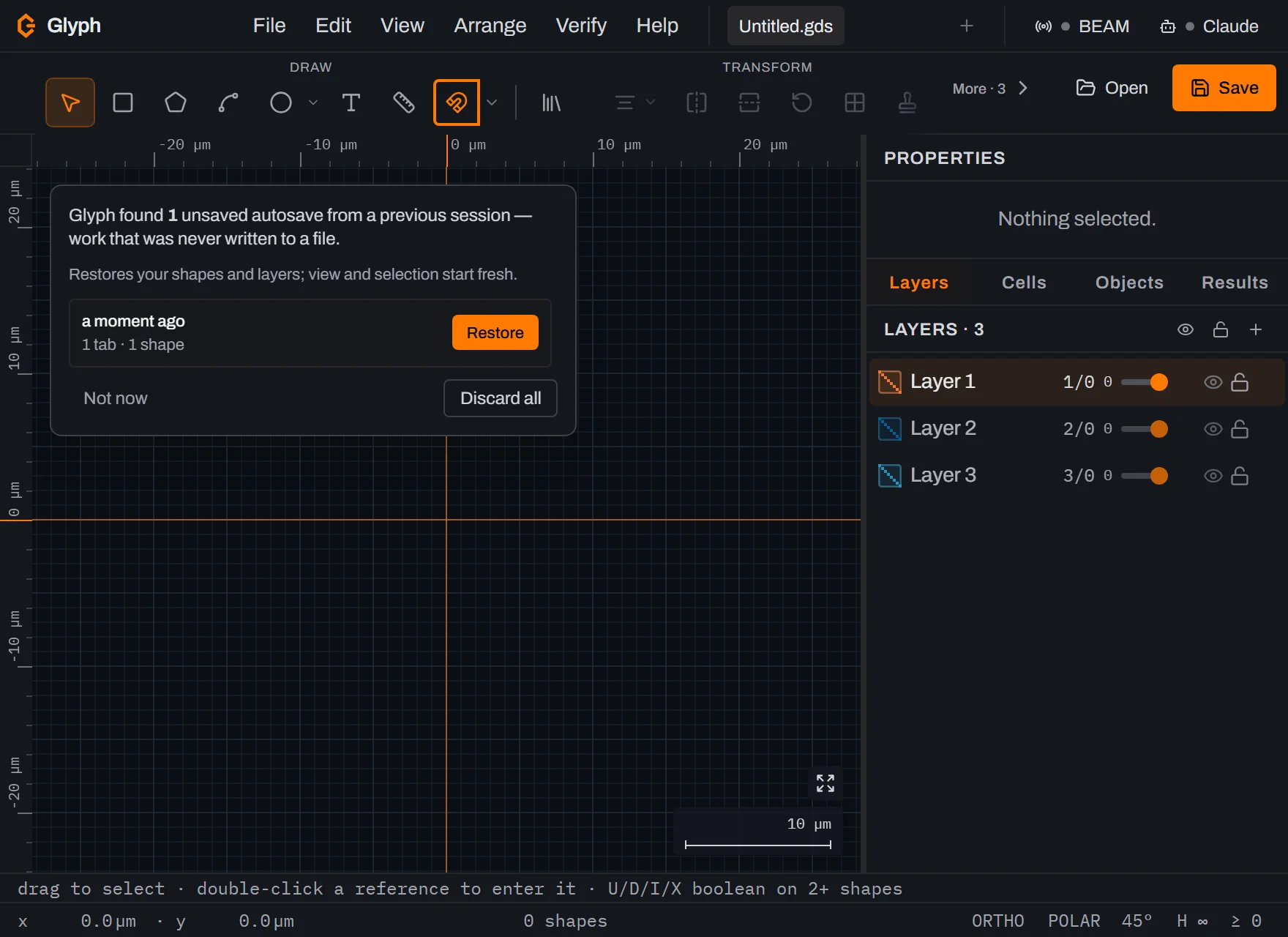
- Look for the Recover pill after a crash. Reopen Glyph after a browser crash or an accidentally closed tab and check the top-right corner. If a Recover pill appears, your recent sessions are still saved.
- Pick a snapshot to restore. The prompt lists snapshots newest-first, each with a timestamp and shape count. Click Restore on the one you want, or Discard to start with a clean slate instead.
- Open File → Autosave status… any time. You don't have to wait for a crash — this dialog shows the same newest-first list of up to ten snapshots mid-session, for rollback or cleanup.
- Act on a specific entry. Restore replaces the current session with that snapshot's tabs; Save now captures a fresh restore point on demand; Delete removes one entry; Discard all wipes the whole history.
- Know what a snapshot leaves out. A recovered tab keeps its original name but starts with an empty undo history — the snapshot omits the undo stack to keep storage small. Empty documents (a fresh tab with no shapes) are never saved, and snapshots older than 7 days are discarded automatically.
- Work through the FAQ below if the problem isn't a lost session at all.
What you built
You now know where Glyph keeps your work between sessions, how to browse and roll back to a specific restore point from either the crash prompt or File → Autosave status…, and what a recovered tab does and doesn't carry over.
Troubleshooting FAQ
A file won't open. Confirm the extension: Glyph opens .gds / .gdsii, .oasis / .oas, .cif, and .dwg directly, .svg in-process, images via the bitmap-import dialog, and both ASCII and binary DXF (Glyph detects which variant a .dxf is and reads it directly — no re-save step). .dxb is a different format from binary DXF and isn't supported — export DXF from your CAD tool instead. If a previously-opened file fails via File → Open Recent, your browser may need to re-grant file access; re-pick it from the file dialog once and it should stick. See Open and save GDS files for the full format list.
Glyph is slow on a huge file. Very large designs (hundreds of thousands of polygons) are outside what any browser-based editor handles smoothly today. Hide layers you're not working on, zoom into the region you need rather than the whole design, and prefer File → Export per layer… when you only need one physical mask at a time.
A layer isn't visible. Open the Layers panel and check that the layer is both shown and unlocked — a hidden or locked layer draws nothing when you click, even though the shapes are still there. Also check the cell breadcrumb: you may be a level deeper in the hierarchy than you think.
A colleague's tool doesn't show my text. Glyph embeds fonts inside the .gds file so Glyph itself can re-render them, but other tools (KLayout, Clewin, and most mask-house viewers) ignore that embedded data and draw nothing for the text. Flatten the text to boundary polygons before sending the file anywhere else — see Fonts: built-in and imported in the docs.
Next steps
Once your file opens cleanly and every layer is visible, the next step in the process chain is picking a resist for the mask you're about to expose — see NANYTE's photoresist glossary for the terms you'll need. Or head to the full troubleshooting reference for issues not covered here, or back into the editor to keep working.