The online GDSII viewer and editor
Open GDSII, OASIS, DXF, DWG, CIF and SVG layouts in your browser, edit them, and export or convert between formats. Free, no install, no account — your files never leave your computer.

Runs entirely on your machine. No upload, no backend.
Why Glyph
Zero install
Open a link and start editing GDS. Works on Windows, macOS, Linux, and ChromeOS — no setup, no admin rights, no waiting on a desktop installer.
Private by design
Parsing, editing, and writing all happen client-side. Your GDSII layout stays on your computer — there is no server to upload it to.
Real GDSII round-trip
A faithful, tested GDSII parser and writer. Open a real mask file, make your edits, and export a clean .gds that other tools read back correctly.
Familiar layout tools
Layers, snapping, boolean operations, hierarchy, and measurement — the everyday mask editing surface, in a fast canvas.
A complete GDS editor and viewer, online
Everything you need to view a GDSII file, make precise edits, and get a clean export — without installing layout software.
- View & navigate GDSII — smooth pan/zoom on large, dense mask files.
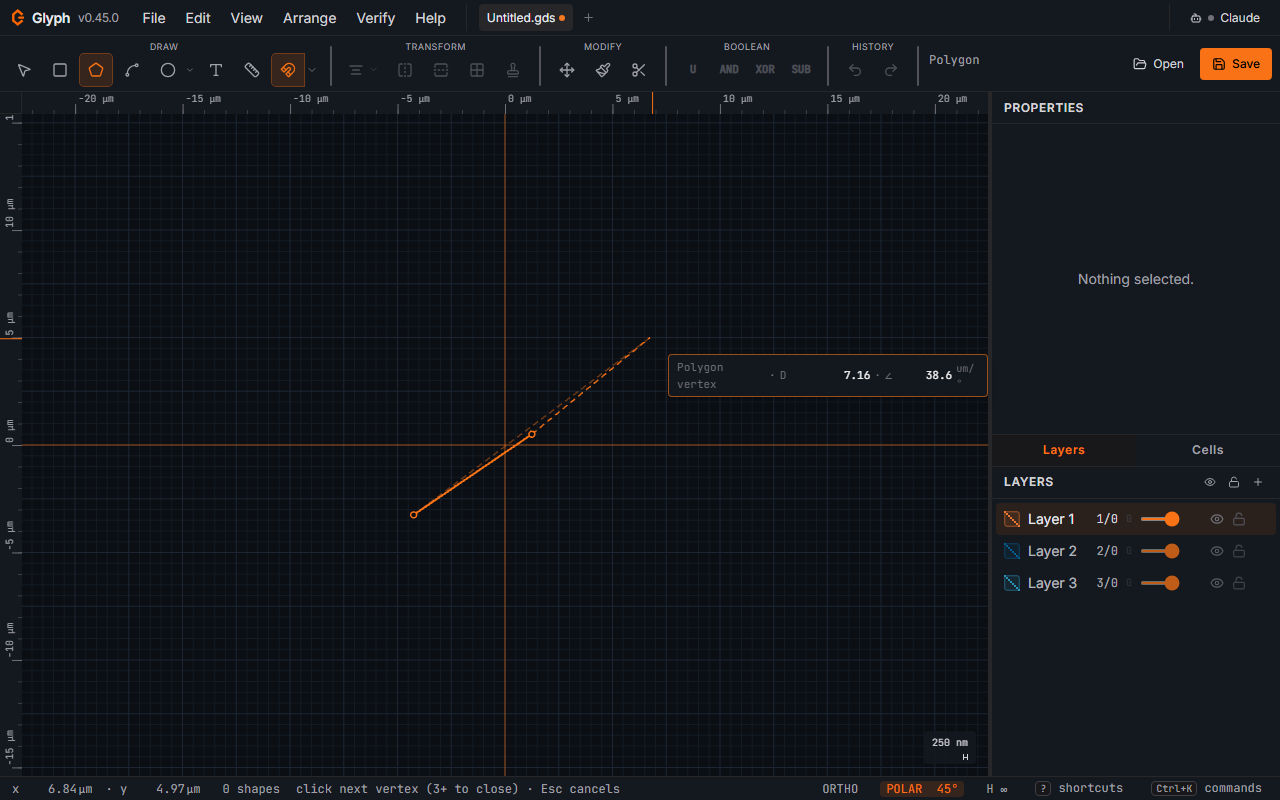
- Draw & edit boundaries, paths, boxes, circles, and polygons.
- Layers with colour, opacity, stipple/hatch, and visibility control.
- Boolean operations — union, subtract, intersect, and XOR.
- Hierarchy — cells with SREF/AREF instances and arrays.
- Offset, chamfer & fillet for clean edges and clearances.
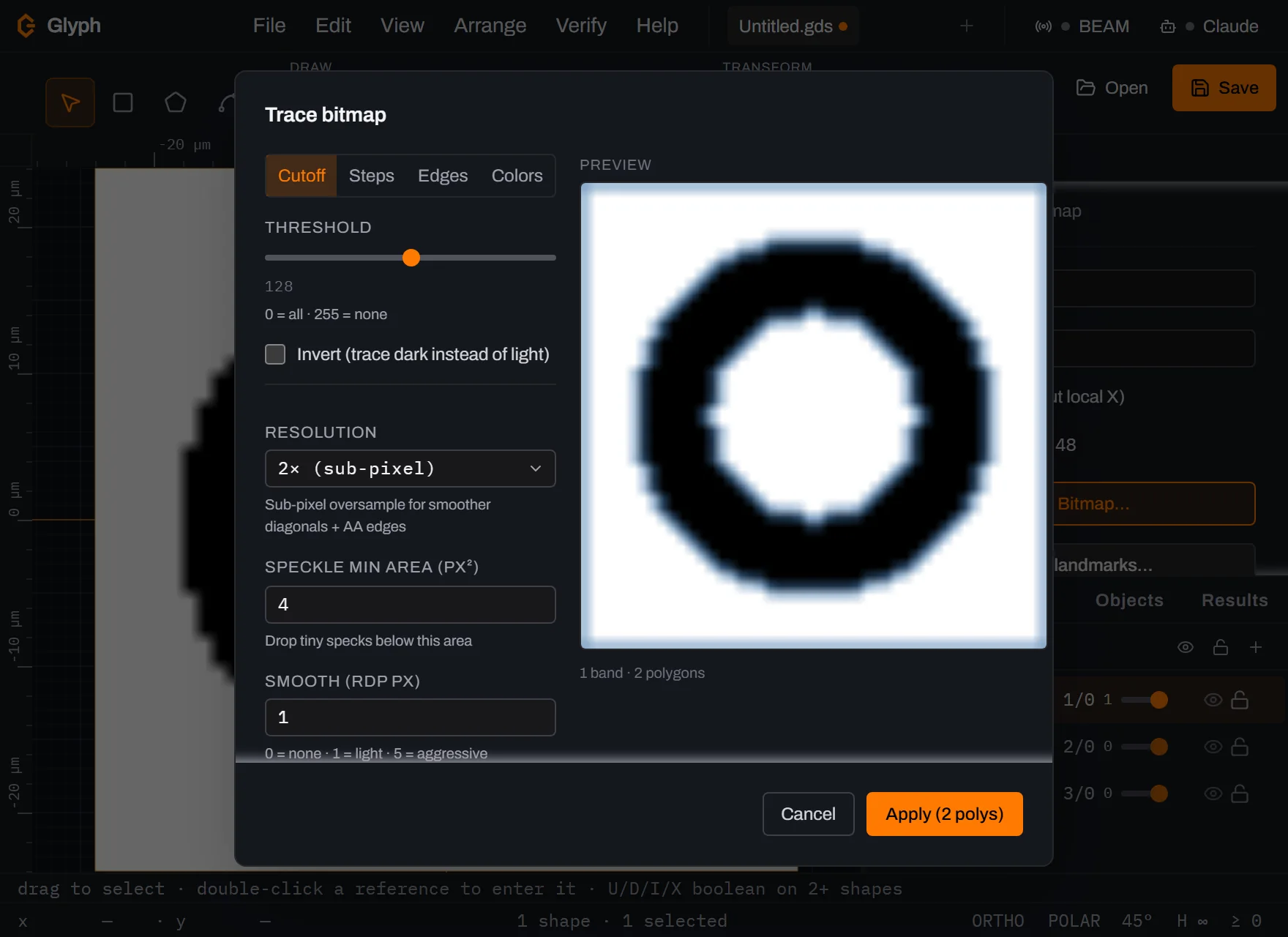
- Import DXF, SVG & images and trace raster artwork to polygons.
- Export to GDSII, SVG, or PNG.
- Text with a built-in font plus your own TTF/OTF fonts.
- Component libraries — metrology, photonics, and microfluidics generators.
- AI-assisted editing — drive Glyph from Claude via the MCP bridge.
- Autosave & recovery so an accidental tab close never loses work.
Every format a mask travels in — read and written in the tab
Eight formats in, seven out. Glyph carries its own parsers and writers, so a
.dwg from a mechanical CAD seat, an .oas from a foundry, and a
hand-written .cif all open in the same editor and export to whatever the
next tool expects — with no converter service and no upload.
Opens
Drag any of these onto the canvas.
- GDSII.gds .gdsii
- OASIS.oas
- DXFASCII and binary
- DWGAutoCAD R14 → R2018
- CIFincluding CleWin dialect
- SVGpaths, shapes, transforms
- ImagesPNG / JPG — trace to polygons
- FontsTTF / OTF — text as real geometry
Saves
Pick the extension; Glyph picks the writer.
- GDSIIround-trips byte-faithfully
- OASISvalidated against KLayout
- DXFvalidated against ezdxf
- CIFvalidated against KLayout + gdstk
- SVGfigure-ready vector
- EPSpublication figures
- PNGrendered raster
Where it is one-way, we say so. DWG is read-only — bring a drawing in,
take it out as DXF or GDSII. PNG and EPS are rendered output, not layout, so they cannot
be opened back up. An imported image stays a tracing reference and never lands in a
.gds; only the polygons you trace from it do. Every conversion page spells
out exactly what survives and what changes.
A web-based mask layout editor
Need to open or tweak a GDS file without setting up a desktop toolchain first? Glyph covers the common viewing and editing tasks — layers, booleans, hierarchy, and export — in a browser tab. It's the fastest way to look at a .gds file on a machine that has no layout software on it, and a lightweight option for quick edits, reviews, and teaching.
Often searched for as a browser-based KLayout alternative. Glyph is an independent project and is not affiliated with or endorsed by KLayout; the name is used for identification only.
Who uses Glyph
Convert CAD and mask files — free, in your browser
Need a format bridge rather than an editor? Convert files takes the same formats listed above and calls the same parsers and writers the editor uses — there is no second, lesser conversion path. It runs entirely in your browser tab, so the file is never uploaded, and every conversion page states exactly what survives and what changes.
Common conversions: DXF to GDSII converter, GDSII to DXF, DWG to GDSII converter, GDSII to SVG, OASIS to GDSII.
Learn Glyph in three steps
No account, no install — you can go from a blank tab to a saved .gds file in
a few minutes. Here's the whole loop, and where to go deeper.
Open or start a design
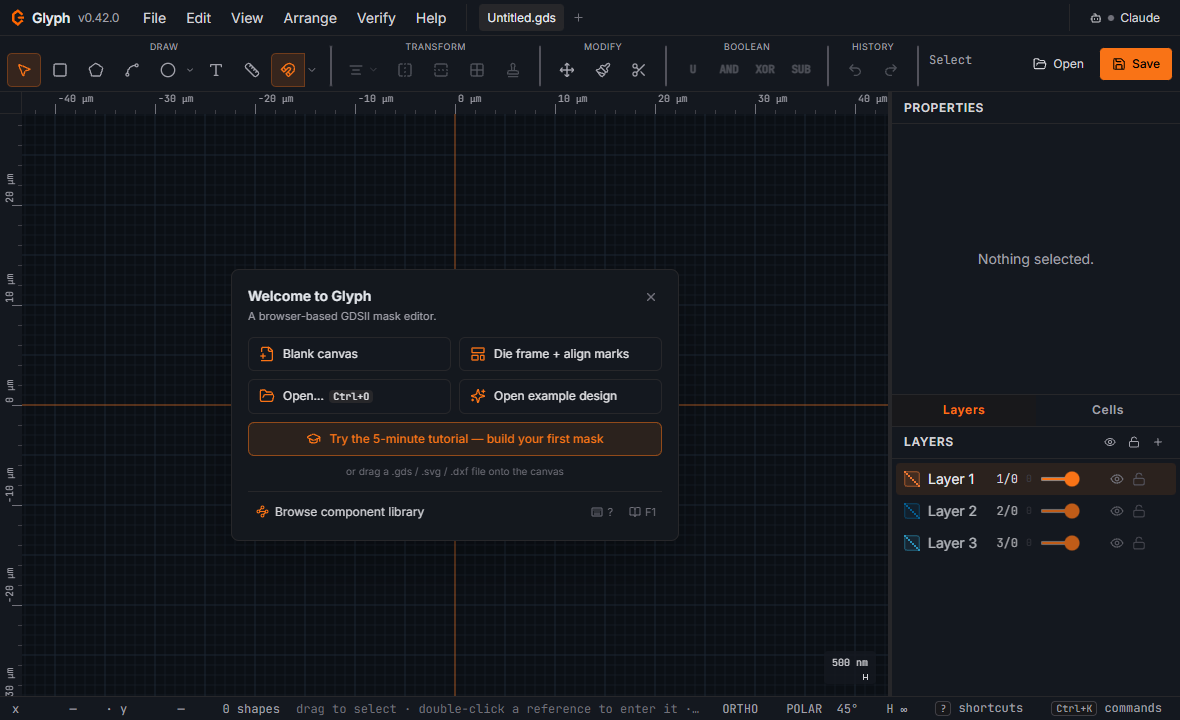
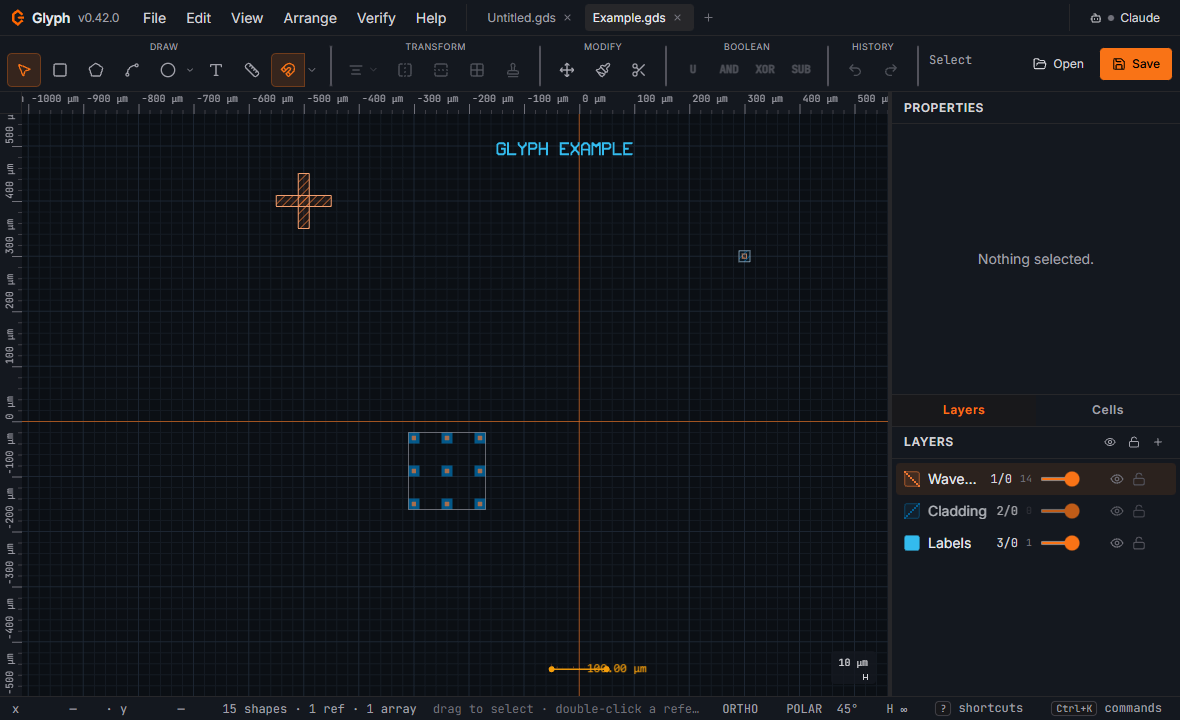
Launch Glyph and drag in an existing .gds — or just start on a blank
document. Nothing uploads; parsing and editing happen entirely on your machine.
Draw & edit on layers
Draw boxes, polygons, and text on numbered GDS layers; resize precisely in the Properties panel. Add a layer, pick a colour, and everything you draw next lands there.
Save as .gds
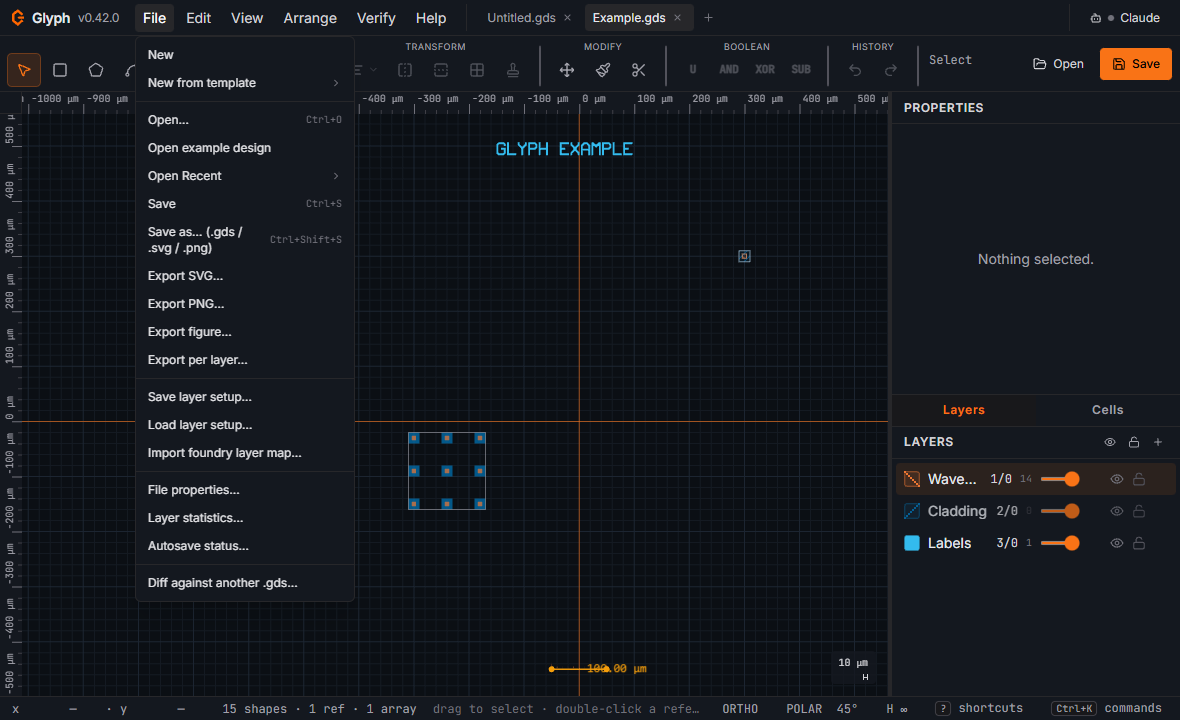
Ctrl+S writes a real, standard GDSII file straight back to disk — no
export dialog to hunt for, and it re-opens cleanly in Glyph or any other layout tool.
Read the full manual → Try the guided tutorial →
The manual covers every tool and shortcut, including a task-by-task "Quickstart — your first mask" chapter. The tutorial link opens the editor with the in-app walkthrough armed.
Frequently asked questions
Quick answers about using Glyph as an online GDS editor.
Is Glyph free to use?
Yes — Glyph is completely free and runs entirely in your browser. There is no account, no paywall, and nothing to install.
Do I need to install anything to edit a GDS file?
No. Glyph is a zero-install web app. Open the page and start editing — it works on Windows, macOS, Linux, and ChromeOS in any modern browser.
Are my GDS files uploaded to a server?
No. Glyph parses, edits, and writes GDSII entirely on your own computer. Your layout never leaves your machine — there is no backend.
Can I open a GDS file without installing anything?
Yes. Glyph runs entirely in your browser — there's nothing to download or install. Open
the page, drag in a .gds file, and start editing immediately.
Is my design uploaded anywhere?
No. Glyph parses, edits, and writes your layout entirely in your browser, with no server-side processing. The one exception is the optional BEAM link: only if you connect it yourself, it sends your design to a lithography tool on the same computer — never over the internet.
Is Glyph a full layout editor?
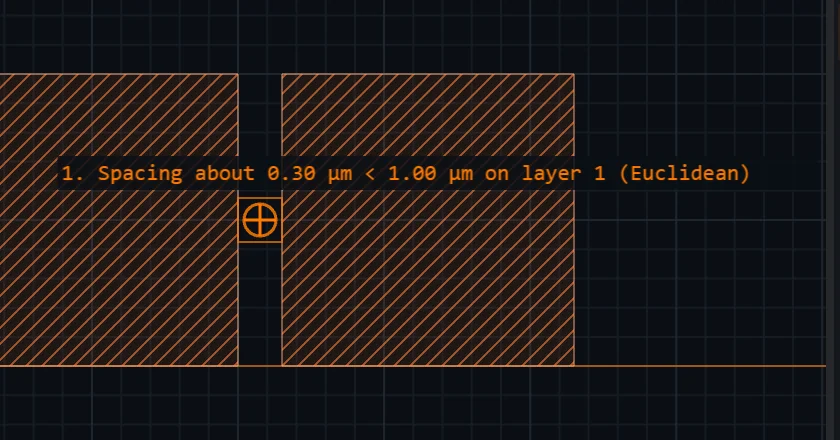
For everyday work, yes. Glyph lets you open, inspect, and edit GDSII — layers, boolean operations, hierarchy, design-rule checks, and export — with nothing to install. Heavy sign-off DRC and full PDK flows still belong in a dedicated desktop toolchain.
What file formats does Glyph support?
Glyph opens GDSII, OASIS, DXF (both ASCII and binary), DWG, CIF and SVG, plus PNG/JPG images for tracing and TTF/OTF fonts. It writes GDSII, OASIS, DXF, CIF, SVG, EPS and PNG. DWG is read-only, and PNG and EPS are rendered output rather than layout, so they cannot be opened back up.
Which browsers does it work in?
Any modern desktop browser with WebGL/WebGPU — Chrome, Edge, or Firefox are recommended for the smoothest canvas performance on large files.
What are layers and datatypes in a GDS file?
A GDS layer is just a number that a mask shop maps to a physical process step (metal,
oxide, resist, …); the optional datatype is a second number for variants sharing that
layer, like a drawn shape versus a pin label. Glyph lets you name and colour each
layer/datatype pair for your own sanity — the numbers are what actually
ship in the file. See
§5 Layers
in the manual.
What's the difference between a cell and an instance (SREF/AREF)?
A cell is a reusable piece of geometry; an SREF or AREF is a placed reference to that cell, not a copy. Edit the cell once and every instance updates together — the single most useful idea in GDS layout, and the top point of confusion for newcomers coming from flat drawing tools. See §6–7 Cells and hierarchy in the manual.
What units does Glyph use — nanometres, microns, or mm?
Everything is stored in nanometres internally (GDSII's native precision), but you can type and read coordinates in nm, µm, or mm — Glyph converts for you. Pick your preferred display unit under File → Setup → Settings. See the manual's Quickstart chapter for the short version.
Will text and circles actually print, or are they just previews?
They print. Text and circles are flattened to ordinary polygons on export — there's no font reference or curve primitive that another tool might render differently or drop entirely. What you see in Glyph is what a mask shop receives. See the manual's Quickstart chapter and §12 Fonts.
Open your first GDS file in seconds
No install, no sign-up. Just open the editor and drag in a .gds.
Launch Glyph →