Let an AI assistant draw GDSII for you
Glyph exposes a local bridge over the Model Context Protocol (MCP), so an AI assistant — Claude Desktop, Claude Code, or any other MCP client — can add shapes, cells, and instances directly in a live Glyph tab. Every tool call is one undo entry, every coordinate is nanometres, and nothing leaves your machine.
- Time: ~10 min
- You'll need: Node.js, an MCP-capable client already installed (Claude Desktop, Claude Code, or similar), and Glyph open in a desktop browser.
- Install the MCP server. It's a small local Node process, not a cloud service. On Windows, download and run the one-click installer; on macOS/Linux, run
npm install && npm run buildinside the server's project folder. Either way, note the token it prints — you'll paste it into Glyph in a moment. - Register the server with your MCP client. Point your client's MCP configuration at the server's entry point, the same way you'd add any other MCP tool. The steps are identical whether the client is Claude Desktop, Claude Code, or another MCP-capable app — the bridge doesn't care which one connects.
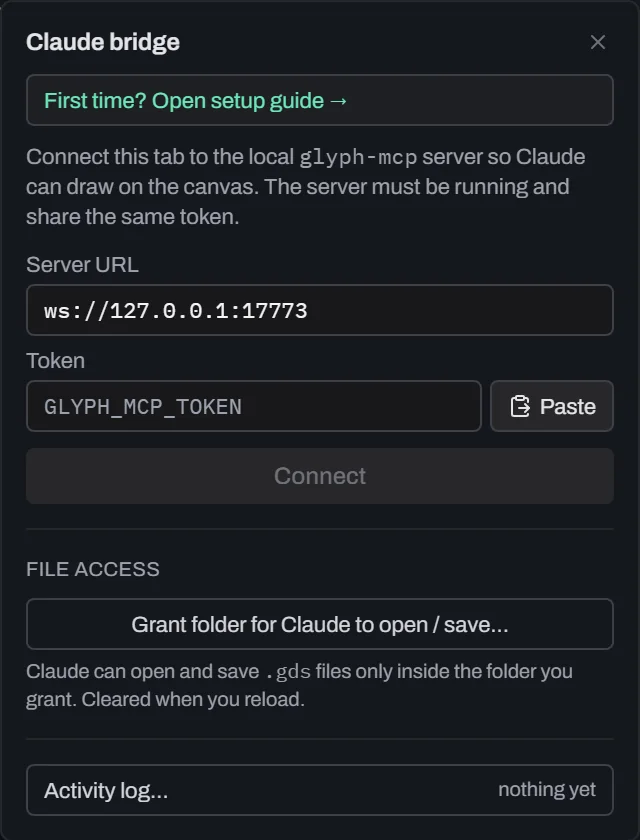
- Open Glyph and click the Claude pill. It's at the right end of the menu bar. Gray means disconnected.
- Paste the token and connect. The WebSocket URL defaults to
ws://127.0.0.1:17773; leave it unless you changed the port. Click Connect. - Approve the first-use prompt. Glyph shows an in-tab confirmation modal the first time a token connects. Click Allow — the approval is remembered until the token changes, so you won't see it again for the same setup.
- Prompt your assistant to draw. Try something concrete and dimensioned, for example: "Draw a 100 µm × 50 µm rectangle on layer 1 centred at the origin." Watch the shape land in the tab in real time — all coordinates the assistant sends are in nanometres, so 100 µm is a call with
100000. - Optional — grant a folder for file I/O. By default the assistant can only draw, not touch your disk. Click Grant folder for Claude to open / save… in the pill and pick one folder; from then on the assistant can list, open, and save
.gdsfiles inside that folder only, until you reload or click Revoke. - Undo like normal if something's wrong. Every tool call the assistant makes is exactly one undo entry, so
Ctrl+Zsteps back through its edits the same way it steps back through yours.
What you built
A live, two-way bridge between an AI assistant and a running Glyph tab: the assistant issued ordinary primitive, cell, and transform calls that landed as real, undo-tracked edits in your document, with disk access limited to a folder you explicitly granted.
Next steps
With geometry on the canvas — whether you drew it or an assistant did — the next step in the process chain is turning a layout into a physical mask. See NANYTE's maskless lithography overview for how a design like this one gets exposed. For the full picture of what the bridge can do inside Glyph, read Connecting Claude (MCP), or jump straight into the editor and connect a client yourself.